


While creating a single LTI 1.3 configuration per Open edX page is time consuming, we make it easy by converting the file to an OLX "light" version. Currently we create a single LTI 1.3 component per page, preconfigured with all the set up needed. You can add additional content around it as needed.
Step 1: Export your course as OLX
Exporting to OLX is simple in Lazuli. You need to make sure your course is published and you have set up your reusable LTI 1.3 configuration in Open edX.
When you're ready to publish, make sure you're on a course content page, and push "Publish" and you'll notice the "Export as OLX" option in Lazuli
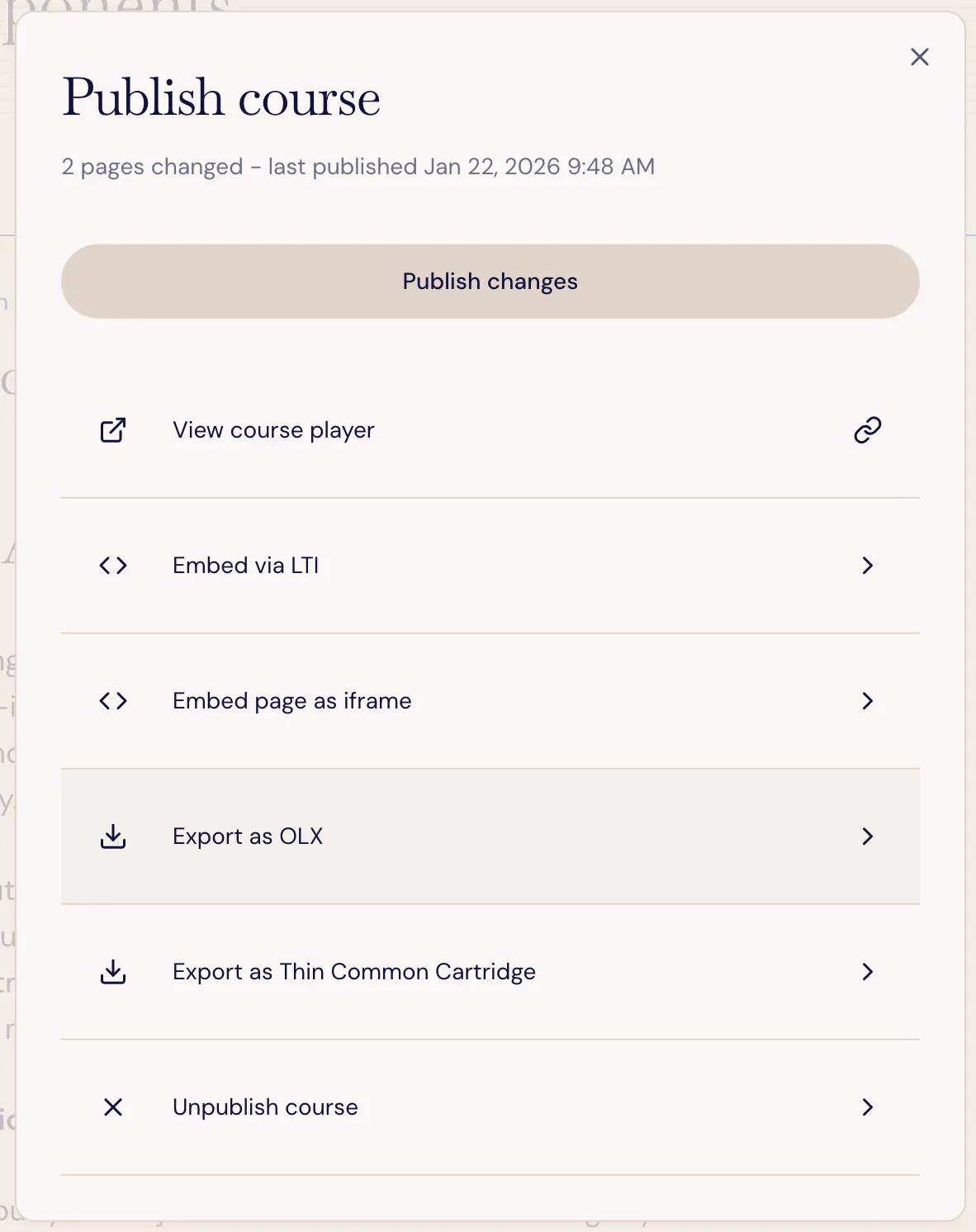
You'll need to enter the following details:
Organization Code: This is what you set in Open edX as your Organization Code. We use LDA
Course Number: Give your course a course number with no spaces (_ and - allowed, for instance, CS_101)
Course Run: Use the course run you would for your Open edX courses, such as Winter_26
LTI Config Reference: use the filter key you receive when you created your reusable LTI 1.3 configuration.
LTI Version: Use LTI 1.3 if possible. If you don't have the reusable LTI config plugin installed, you may want to try using LTI 1.1.
Then you'll download the OLX file as a .tar.gz compressed folder.
Step 2: Import your course to Open edX
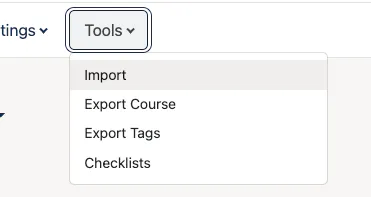
Create a course in Open edX. Then in studio, go to Tools and Import
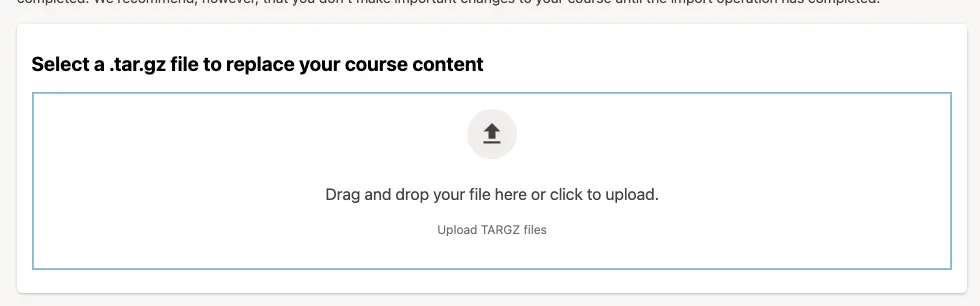
Add your .tar.gz file to the upload section
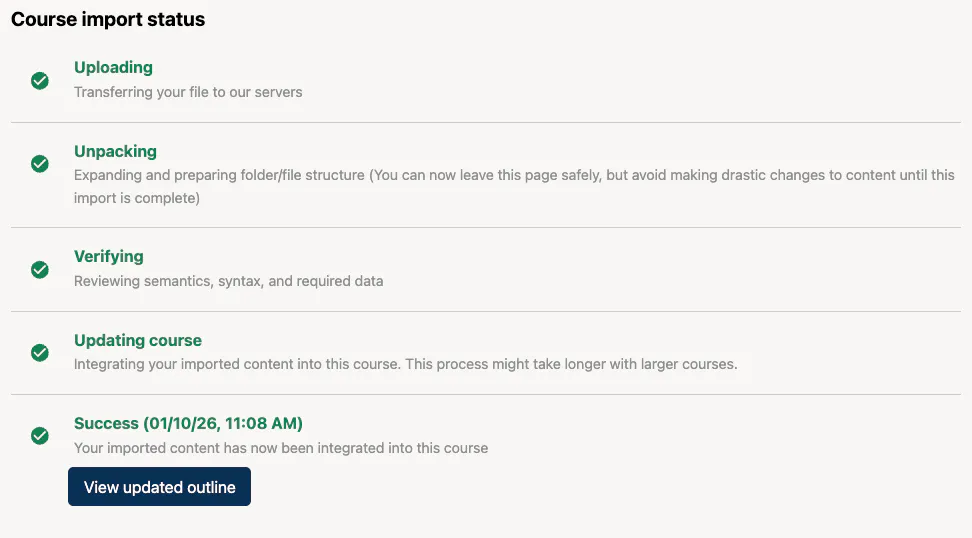
Your course will be processed and you should get all green checks:
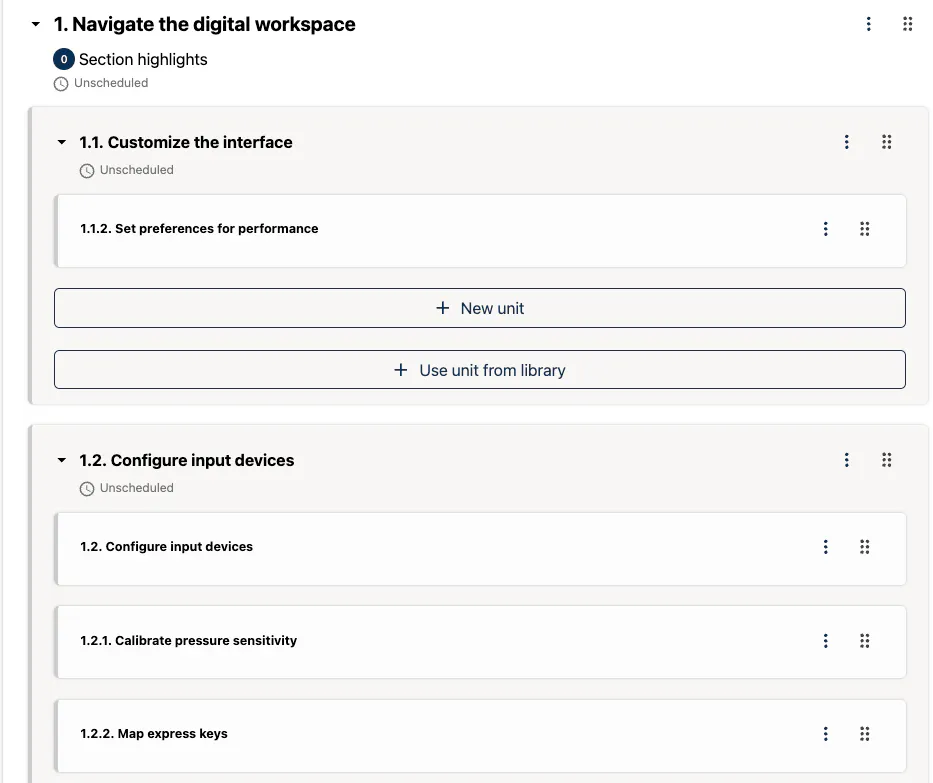
You're now ready to view your course. You should find all the course is structured as your Lazuli course is (with chapters, sections, units, etc.) and each page includes an LTI component preconfigured.
Note: Open edX automatically sets each page as "published" but does not set a release date. This means students will not see the course, but you'll need to set your publishing and release configurations as per your organization's policies.
If you make text changes to any page in Lazuli, you can simply publish the page and the changes will be reflected automatically in Open edX. If you're making draft changes and haven't published those pages yet, students will not see those changes until you publish them.
If you make structural changes to the course (adding, removing or changing the order of pages or sections), you may want to consider re-exporting a new OLX file and reimporting it.
WARNING: this will overwrite any changes you have made in Studio, such as adding new content, configuration changes, advanced settings, name changes, etc. So please only do this if you haven't made any additional changes to the course in Open edX Studio.