


The Course Analytics Dashboard helps you see how learners interact with your course — where they’re mastering content easily, where they’re challenged, and how they’re progressing overall.
Every number on this page comes from real learner activity: completions, attempts, retries, and performance across your course.
This guide explains what each section means and how to interpret the patterns you see.
Overview Tab
The Overview tab gives you a snapshot of course performance across three key areas: content quality, learning flow, and learner activity.
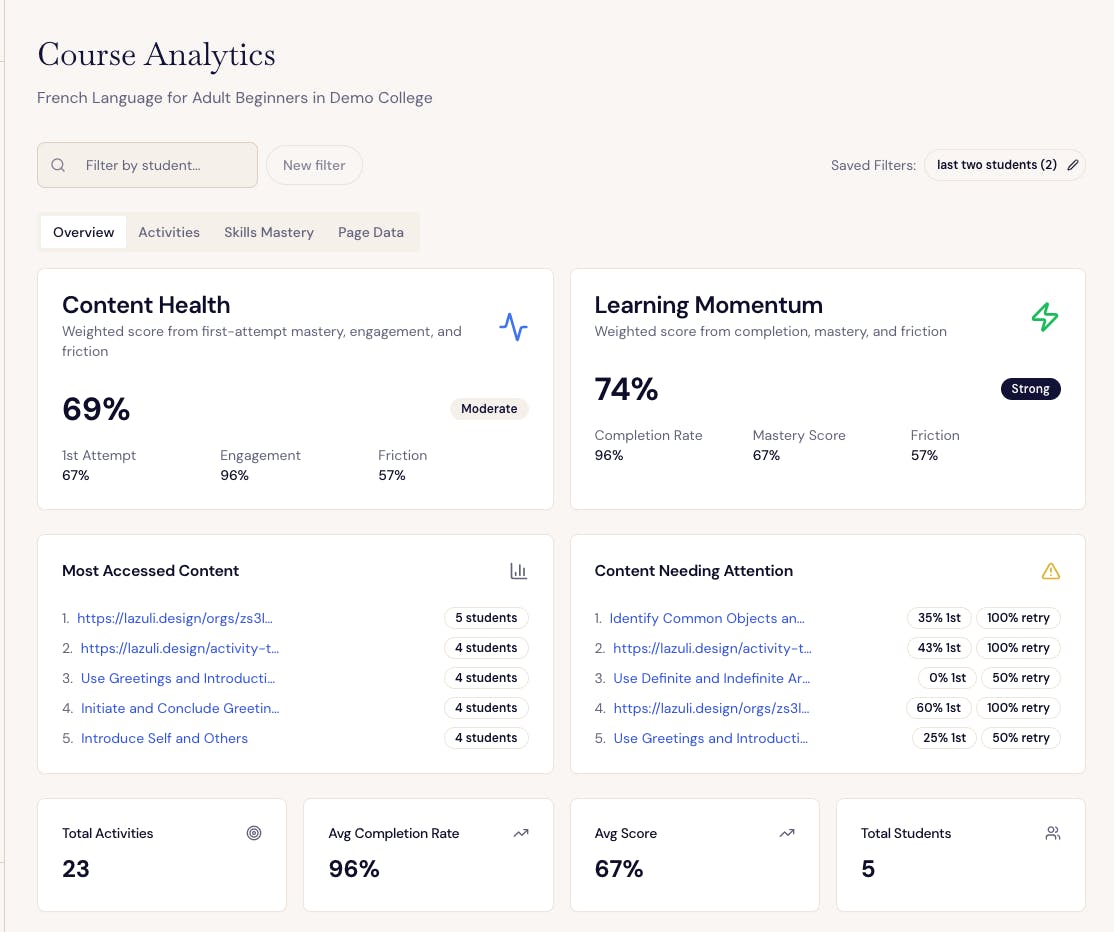
Content Health
What it means:
Your Content Health score reflects the overall clarity and effectiveness of your course materials. It combines:
1st Attempt – how well students perform on their first try
Engagement – how many students complete the activities they start
Friction – how often students need to retry tasks
A balanced score tells you how easy it is for learners to understand and complete content the first time.
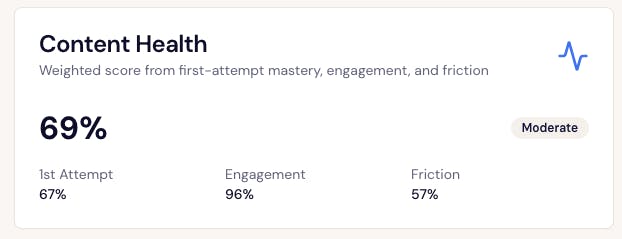
How to interpret it:
Health Range
What It Means
70% +
Healthy – learners grasp material easily and stay engaged.
50–70%
Moderate – most content is clear, but some activities may be confusing or overly difficult.
Below 50%
Needs attention – learners are struggling or disengaging.
Example:
If you see Content Health = 69% with Engagement = 96% and Friction = 57%, learners are motivated and completing the work — but many need multiple attempts to succeed. Consider clarifying instructions or feedback on the most retried activities.
Learning Momentum
What it means:
Learning Momentum measures how smoothly learners are progressing through the course. It looks at:
Completion Rate – are learners finishing what they start?
Mastery Score – how well they’re performing overall
Friction – how much retry effort is needed
A high score means learners are making steady, confident progress.
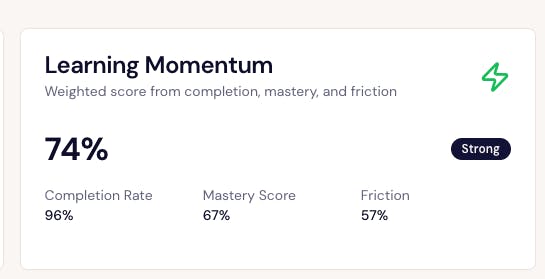
Example:
If Momentum = 74% (Strong) and Friction = 57%, learners are advancing but with some effort — they may be finding content challenging, yet still improving.
Why it matters:
Momentum reflects learner flow. If Momentum drops while Content Health stays high, learners may need pacing or motivational support rather than content fixes.
Most Accessed Content
This list shows the top five activities or pages most frequently opened by students.
Use it to:
Identify your most visible or central content.
Prioritize polishing or revising these key learning experiences.
Spot which topics naturally draw student attention.
If you see certain activities consistently at the top, consider reviewing them regularly to ensure clarity and alignment.
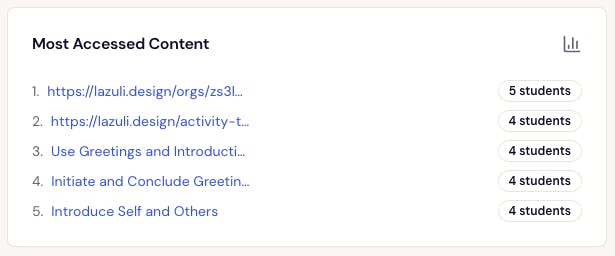
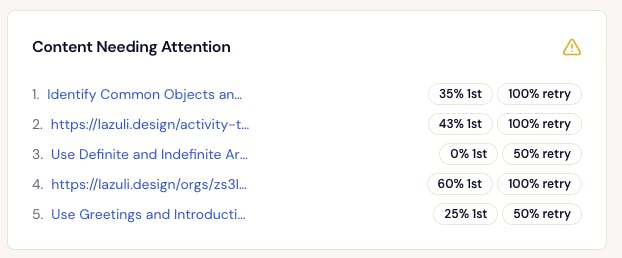
Content Needing Attention
Highlights up to five activities where learners struggle most — combining low first-attempt scores with high retry rates.
Example:
If “Identify Common Objects and Colors” shows 35% 1st attempt and 100% retry, it means nearly all learners had to try again. That’s a clear signal to simplify the task or improve guidance.
Use it to:
Pinpoint where learners are confused.
Add clearer instructions, examples, or feedback.
Celebrate progress when these activities improve over time.

Quick Stats (Bottom Summary Cards)
Total Activities – total number of distinct learning activities in your course.
Avg Completion Rate – overall percentage of students finishing activities.
Avg Score – average of learners’ highest scores across all activities.
Total Students – number of unique learners in your project (based on the most-accessed activity).
These values give quick context for the scale and participation level of your course.
Activities Tab
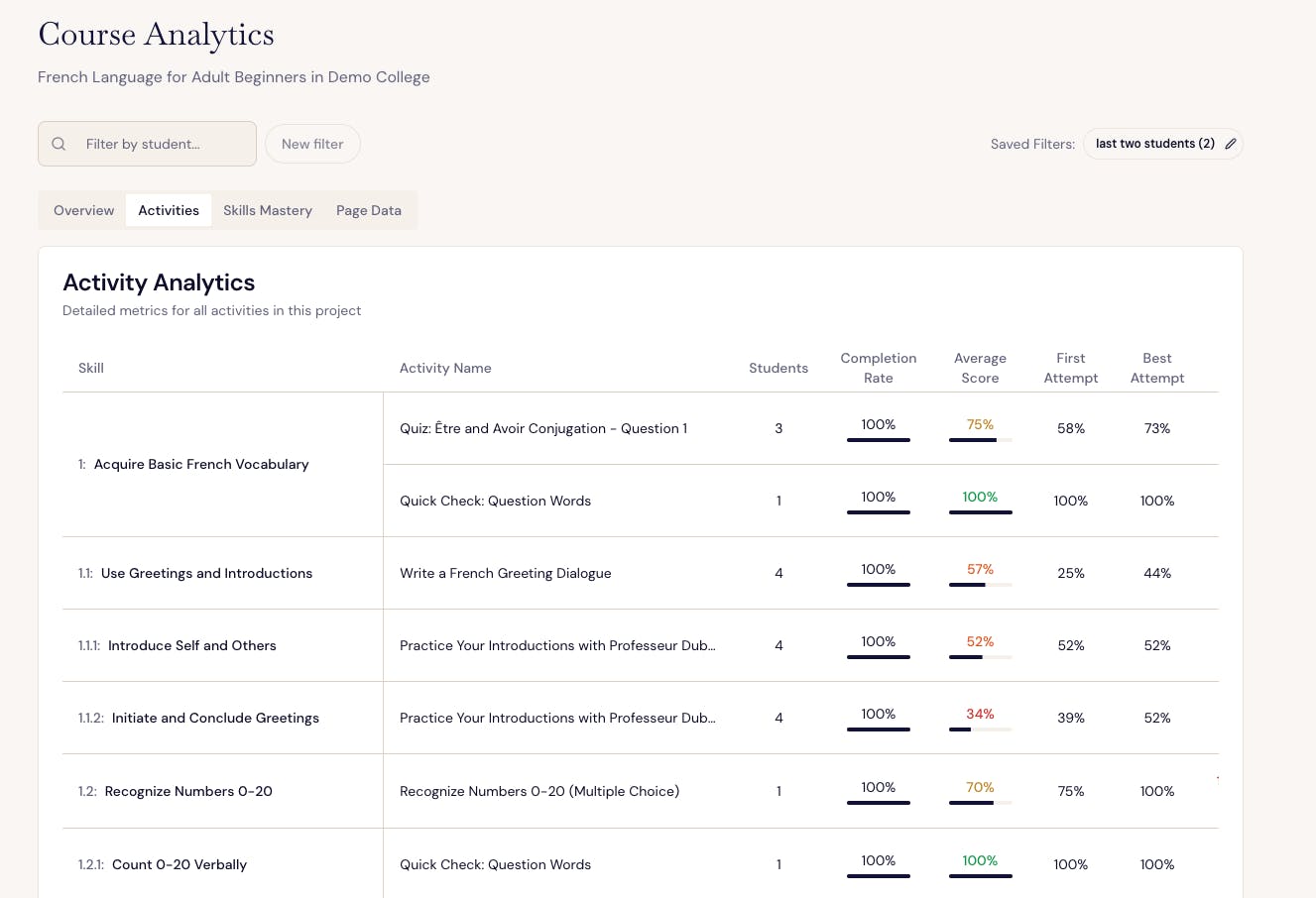
The Activities tab provides detailed metrics for each individual activity.
Each row includes:
Skill – the learning outcome or competency this activity supports
Activity Name – linked to the specific task
Students – how many learners have attempted it
Completion Rate – percentage who finished it
Average Score – average of each learner’s highest score
First Attempt – average first-try performance
Best Attempt – highest average score after retries
How to read it:
High first attempt, low best attempt difference = content is easy or overly simple.
Low first attempt, high best attempt = learners are improving with feedback — a good challenge.
Low first attempt, low retries = unclear or discouraging; learners may give up early.
Example:
If “Write a French Greeting Dialogue” shows First Attempt = 25% and Best Attempt = 44%, learners are struggling to get started but improving slightly — suggesting the need for more guidance or examples before the task.
Skills Mastery Tab
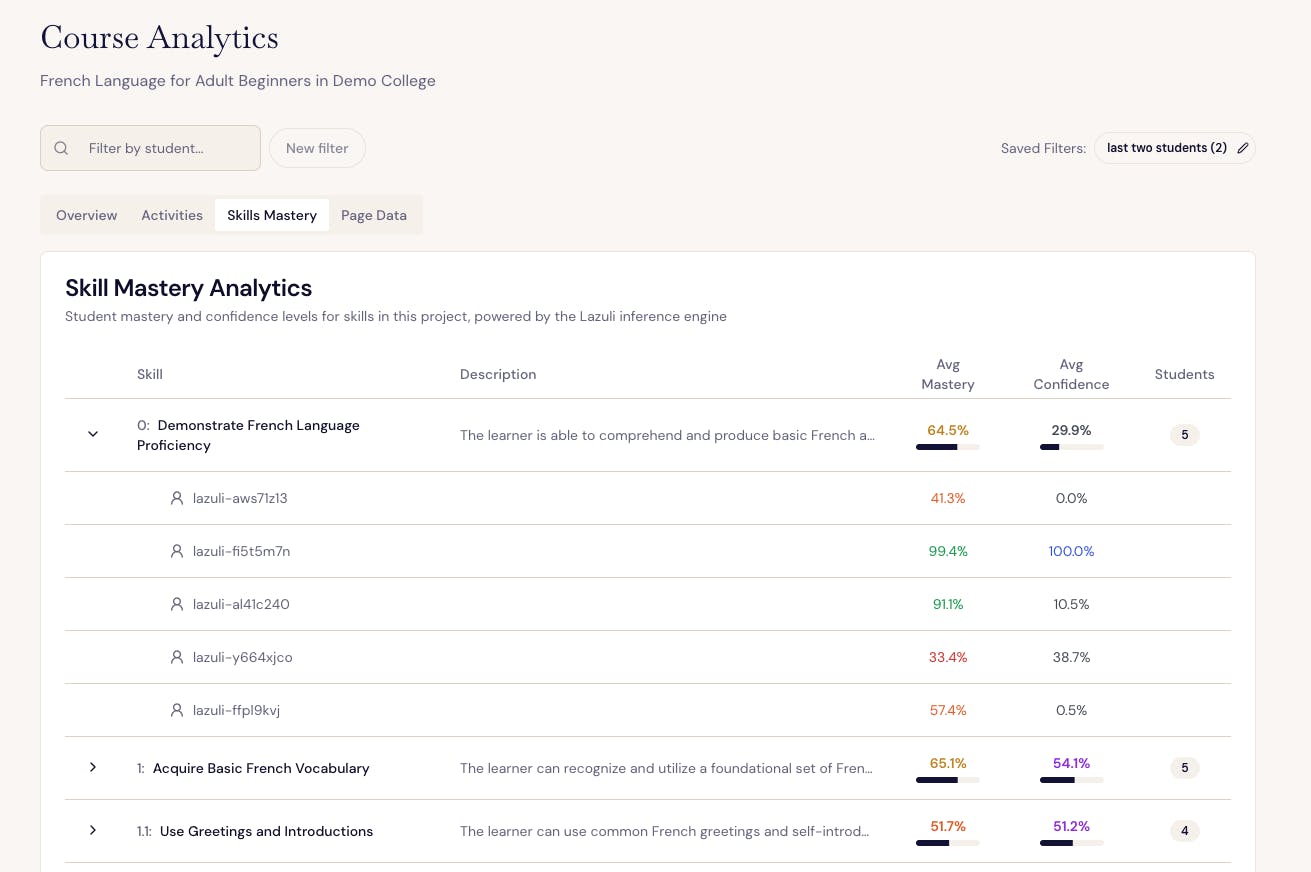
The Skills Mastery tab shows learner mastery and confidence across all competencies in your course, powered by Lazuli’s inference engine.
Each skill displays:
Skill Name and Description – what learners should be able to do
Avg Mastery – average likelihood (0–100%) that learners have mastered this skill
Avg Confidence – how certain Lazuli is about that mastery estimate, based on how much data it has
Students – number of learners contributing to the calculation
How to interpret it:
Scenario
What It Means
High Mastery,
High Confidence
Skill is well supported and reliably measured.
High Mastery,
Low Confidence
Learners are performing well, but there isn’t enough data yet. Encourage more practice.
Low Mastery,
High Confidence
Strong signal that the skill needs attention. Add practice or feedback.
Low Mastery,
Low Confidence
Too little data to draw conclusions — focus on engagement.
Example:
If “Acquire Basic French Vocabulary” shows Avg Mastery = 65% and Confidence = 54%, learners are progressing but more consistent practice would strengthen reliability.
Page Data Tab
The Page Data tab provides insight into how learners navigate and experience your course content overall.
⚠️ Note: page level data is aggregated across all users and is not sortable by student.
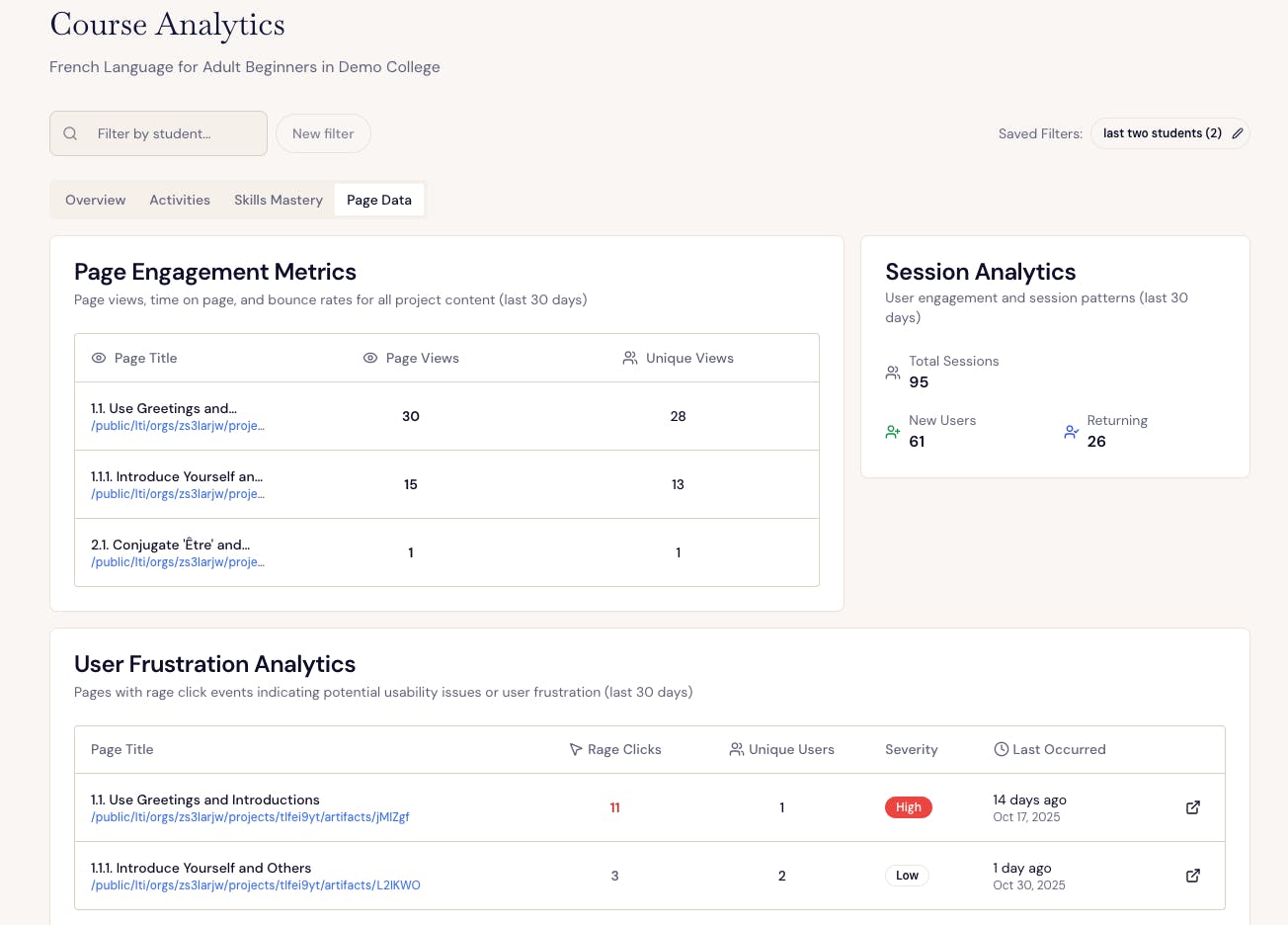
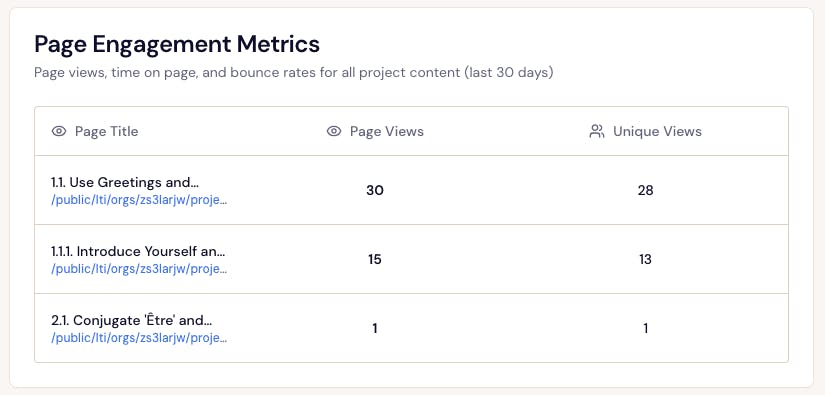
Page Engagement Metrics
Shows which pages attract the most views and how long learners stay.
Page Views: total visits
Unique Views: how many distinct learners visited
Bounce Rate: percentage of users who leave without interaction
Use this to identify high-traffic areas and potential drop-off points.
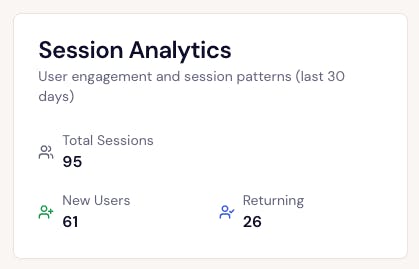
Session Analytics
Summarizes overall activity for the past 30 days:
Total Sessions – how many times learners engaged
New Users – first-time learners
Returning Users – learners who came back
This gives you a sense of learner retention and re-engagement.
User Frustration Analytics (Rage Clicks)
Tracks “rage clicks” — when users rapidly click the same element repeatedly, often signaling frustration or a broken interaction.
Each rage-click entry lists:
The page title and link
How many users were affected
Severity (Low / High)
When it last occurred
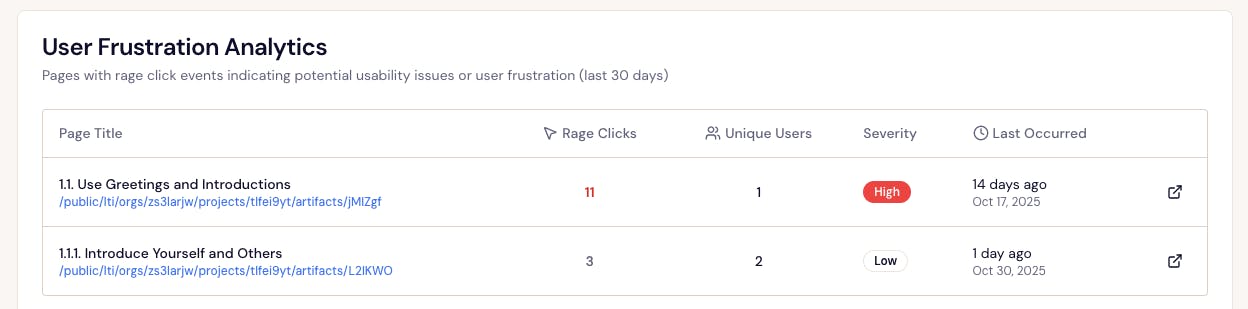
Example:
If “Use Greetings and Introductions” shows 11 rage clicks marked as High, check for unclear buttons, broken links, or timing issues on that activity.
Interpreting the Data Together
Pattern You Notice
What It Suggests
What to Do
High Engagement,
High Friction
Students are invested but struggling
Add clarity or scaffolding
Low First Attempts,
High Best Attempts
Productive challenge and learning
Keep content rigorous
Low First Attempts,
Low Retries
Confusion or unclear directions
Add examples or simplify
Low Momentum but High Health
Learners understand content but aren’t finishing
Check pacing or workload
High Rage Clicks on a Page
Possible usability issue
Review interaction design
Tips for Using Analytics
Focus on trends, not isolated numbers. Look at patterns across attempts and retries.
Pair metrics together. For instance, high friction + improving scores means good struggle; high friction + flat scores means confusion.
Start with “Content Needing Attention.” Those are your clearest opportunities to improve clarity or flow.
Celebrate the positives. High engagement and high mastery show strong design decisions worth replicating.
In Short
Your dashboard translates learner behavior into insight.
Use it to celebrate success, uncover friction, and continuously refine your learning design for clarity, engagement, and mastery.
Tip: Metrics are mirrors, not grades. They reflect where learning is happening — and where better design can make it happen more smoothly.