We believe at Lazuli that one of the best things we can do to support learning designers is to make it easy to bring content in and out of Lazuli into their LMS. Let's look at what we're doing to integrate with Canvas. See also Importing a Common Cartridge (Canvas, D2L Brightspace, Moodle, Schoology, Blackboard Learn, etc.) course.
Adding Lazuli Content
If you have completed all the steps above, and all your configuration values are correct, you should see Lazuli correctly implemented in your Canvas placements (see Adding a new LTI app to Canvas for details on placements).
When adding a new module, you should now be able to select “Add External Tool to [Course name]” in the link selector. You will see a list of connected LTI tools, with a magnifying glass showing deep linking is enabled.
Note: If you don't see a recently added configuration in the menu, try clearing the cache and hard reloading the page.
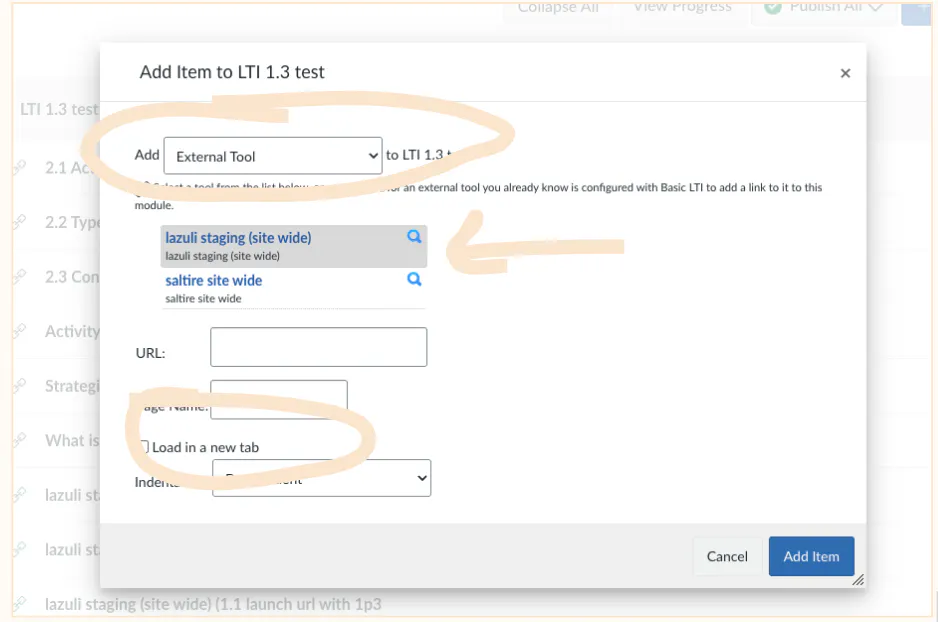
Selecting the magnifying glass next to your Lazuli app will open the deep link resource selector:
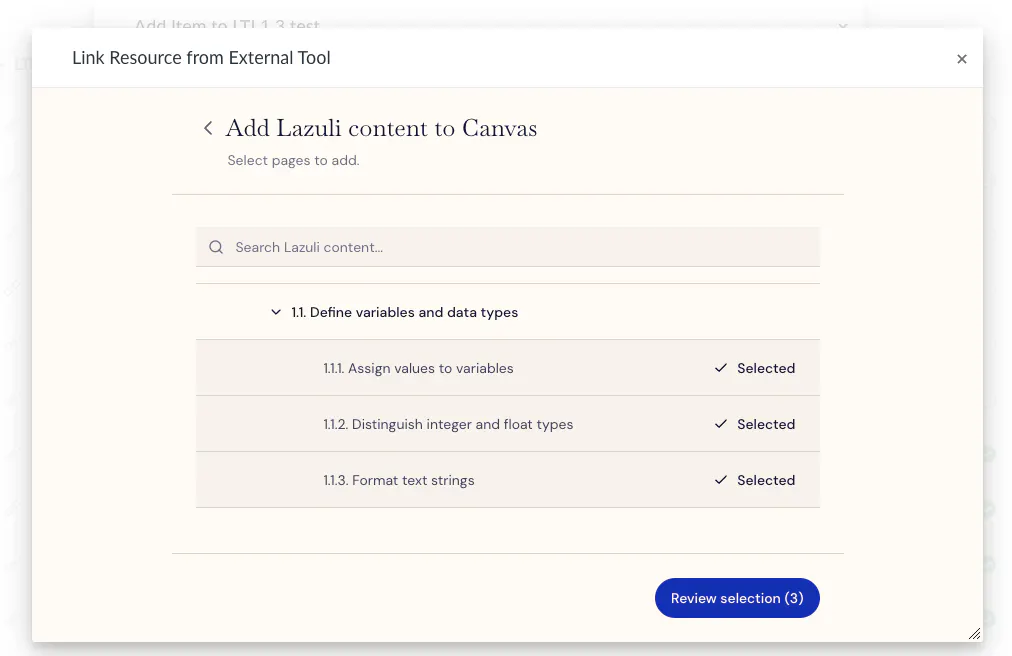
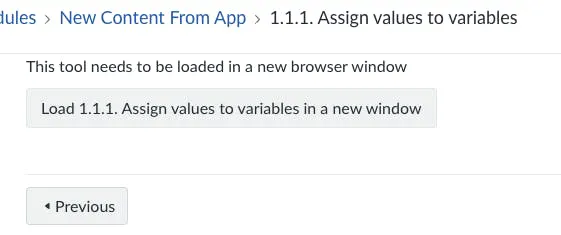
If you select more than 1 resource, each will receive its own page in the module. By selecting Load in a New Tab the page will include a link that launches the Lazuli page in a new window.
Note: Resources added with Link Selection cannot be connected to the LTI grading service or have grades passed to the Canvas gradebook. https://developerdocs.instructure.com/services/canvas/external-tools/lti/placements/file.link_selection_placement
Selecting "load in a new tab" will make a resource link that will all students to open the Lazuli course player in a new window.
Module Index (Modal)
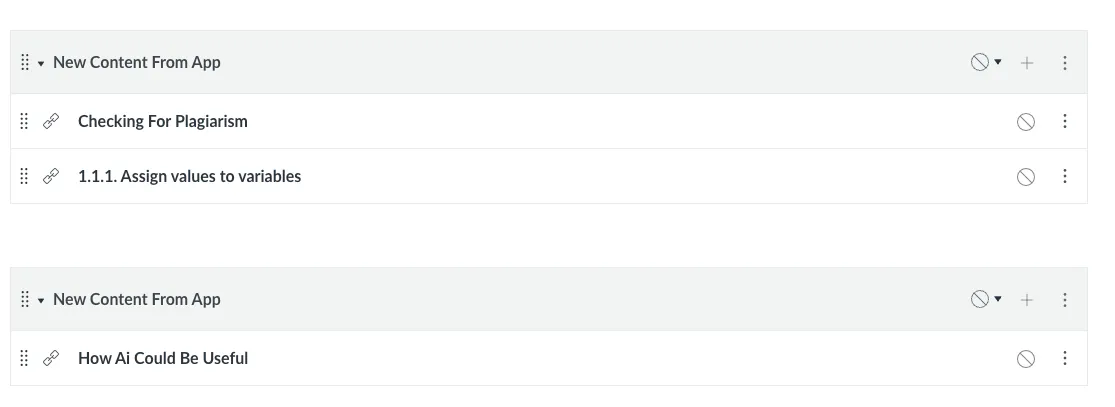
If you selected the placement for Module Index Menu, you'll be able to add a Module with selected lazuli pages as separate pages. This is useful if you want to quickly select a number of Lazuli pages from one Lazuli section and group them together separately in your Canvas course as separate modules
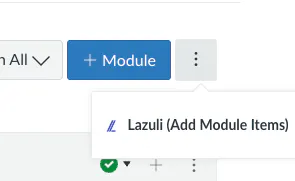
Each time you add content this way, a new module is created with the selected resources underneath. you may have to rename the module afterward.