


Now that your course is complete, you're probably wondering how to get it into your LMS as LTI iframes or link outs. First you need to start by publishing your course
Publishing your course
When you are ready to publish your course, you will need to be on any Course page. You will then see the Publish button in the top right corner of your workspace.
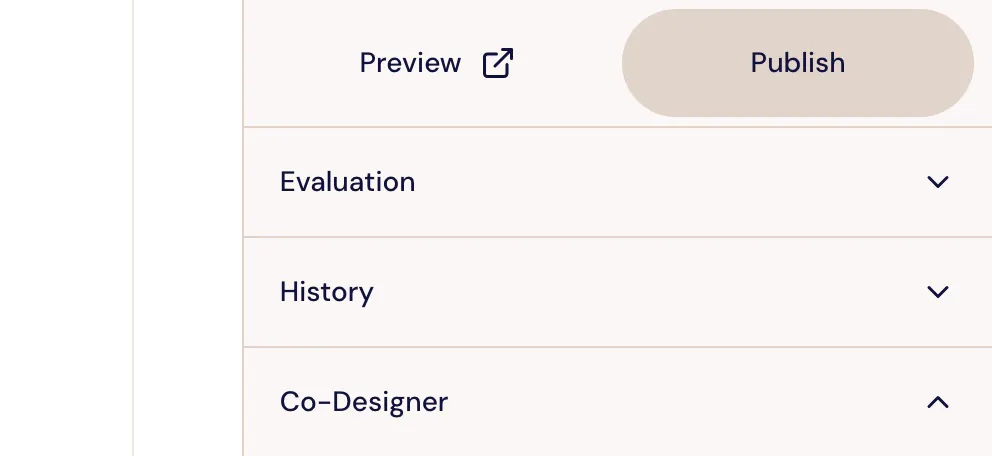
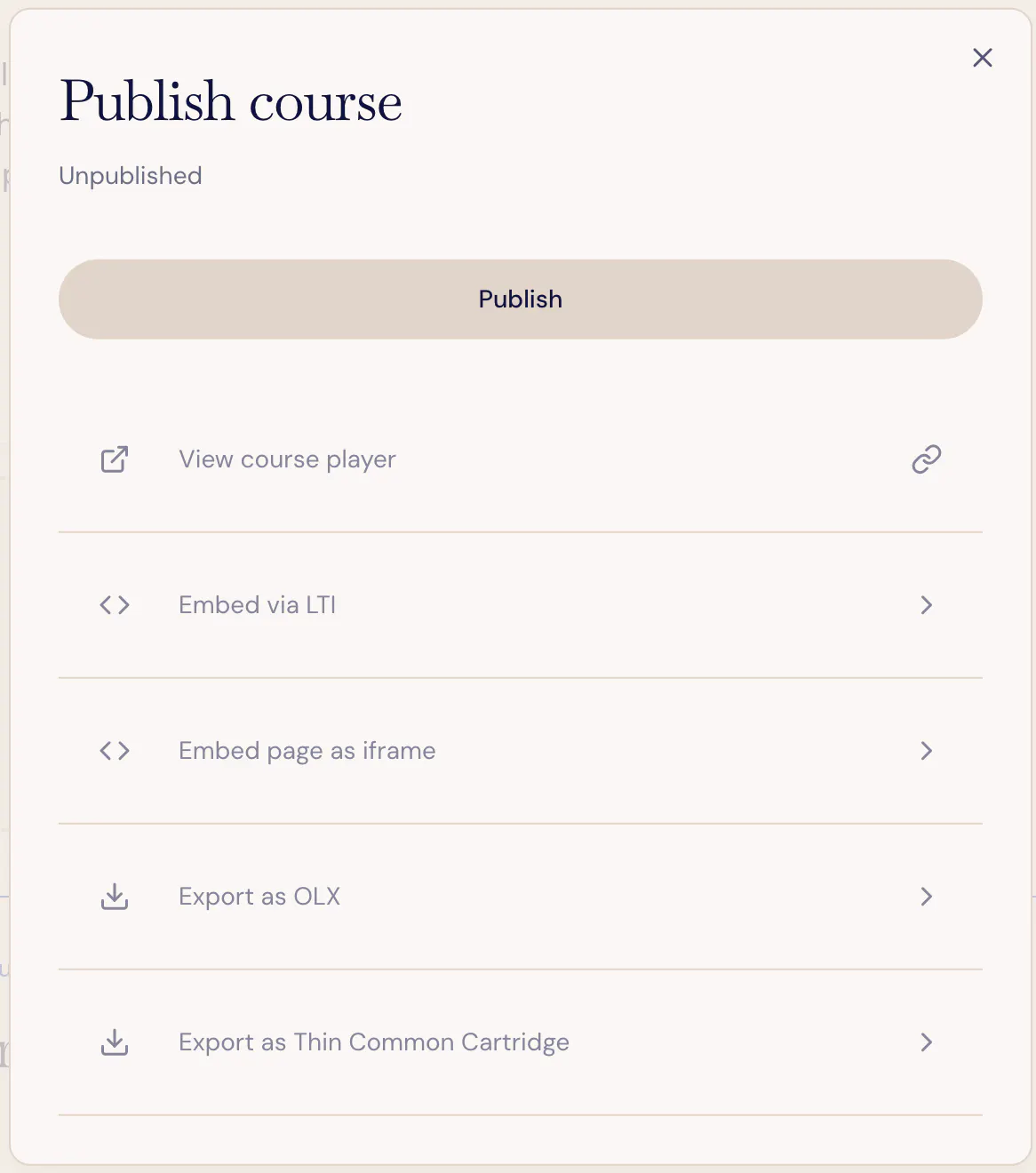
Publishing determines which version of the course is "live" in the course player or in an LTI iframe. You can select which pages are published, but it's best to publish them all and control access from within your LMS. That way you don't accidentally link to a page students can't access.
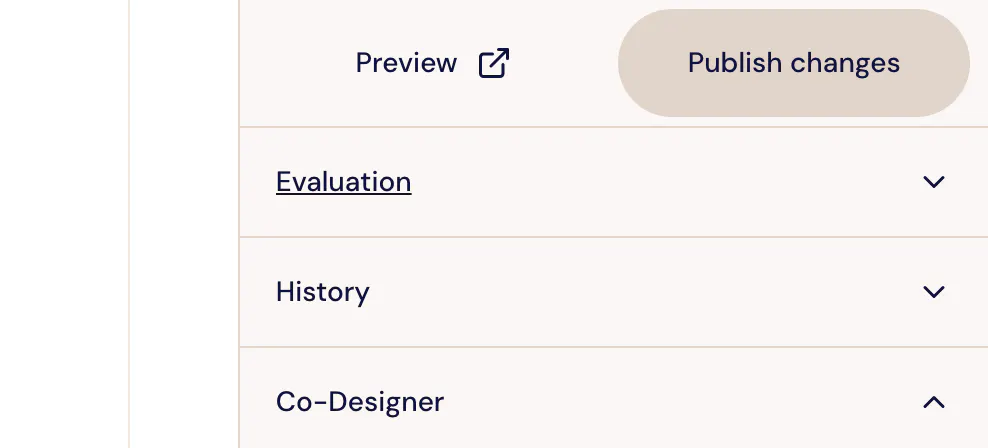
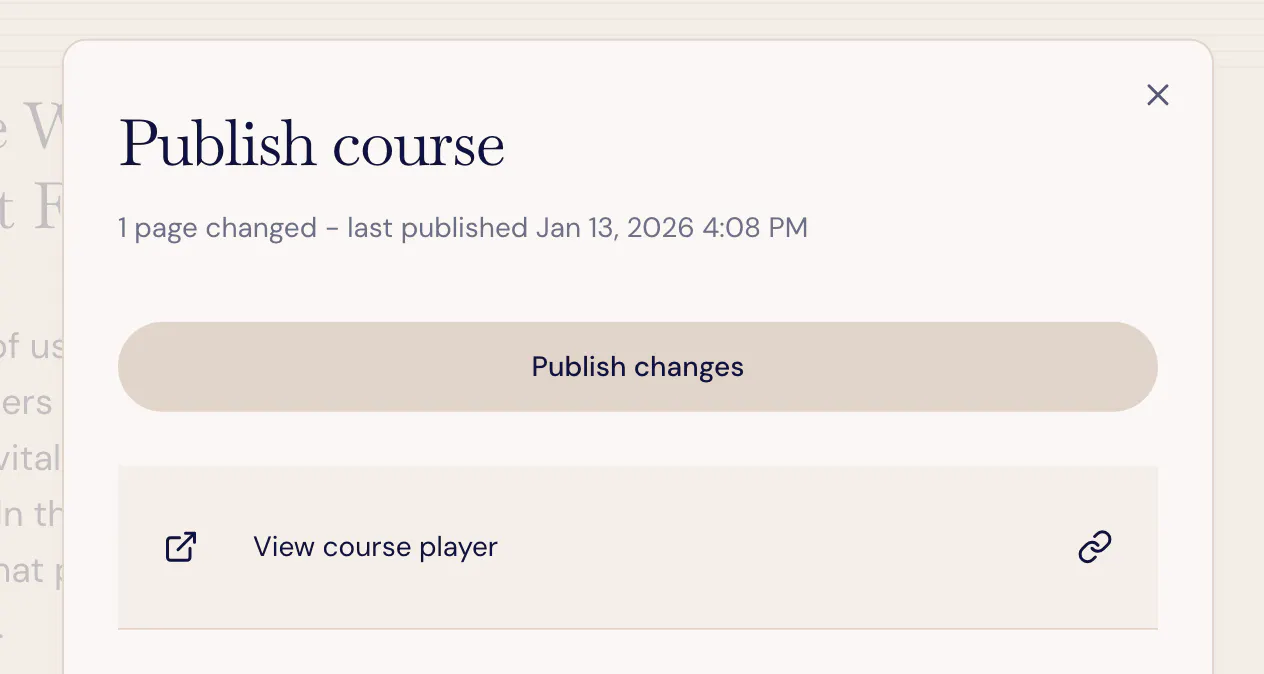
If you make changes to a document after you already published it, you will notice the button will now say "Publish Changes".
You are welcome to make changes to any content after publishing without fear that it's going to impact current students since the last published version of the page is "frozen". For instance, you may start updating a draft during the term that you republish after the current term is over.
In other cases you may have minor corrections you want make on one page during the term without it affecting pages you are working on. Once you publish the course, you will be able to choose which pages get updated.
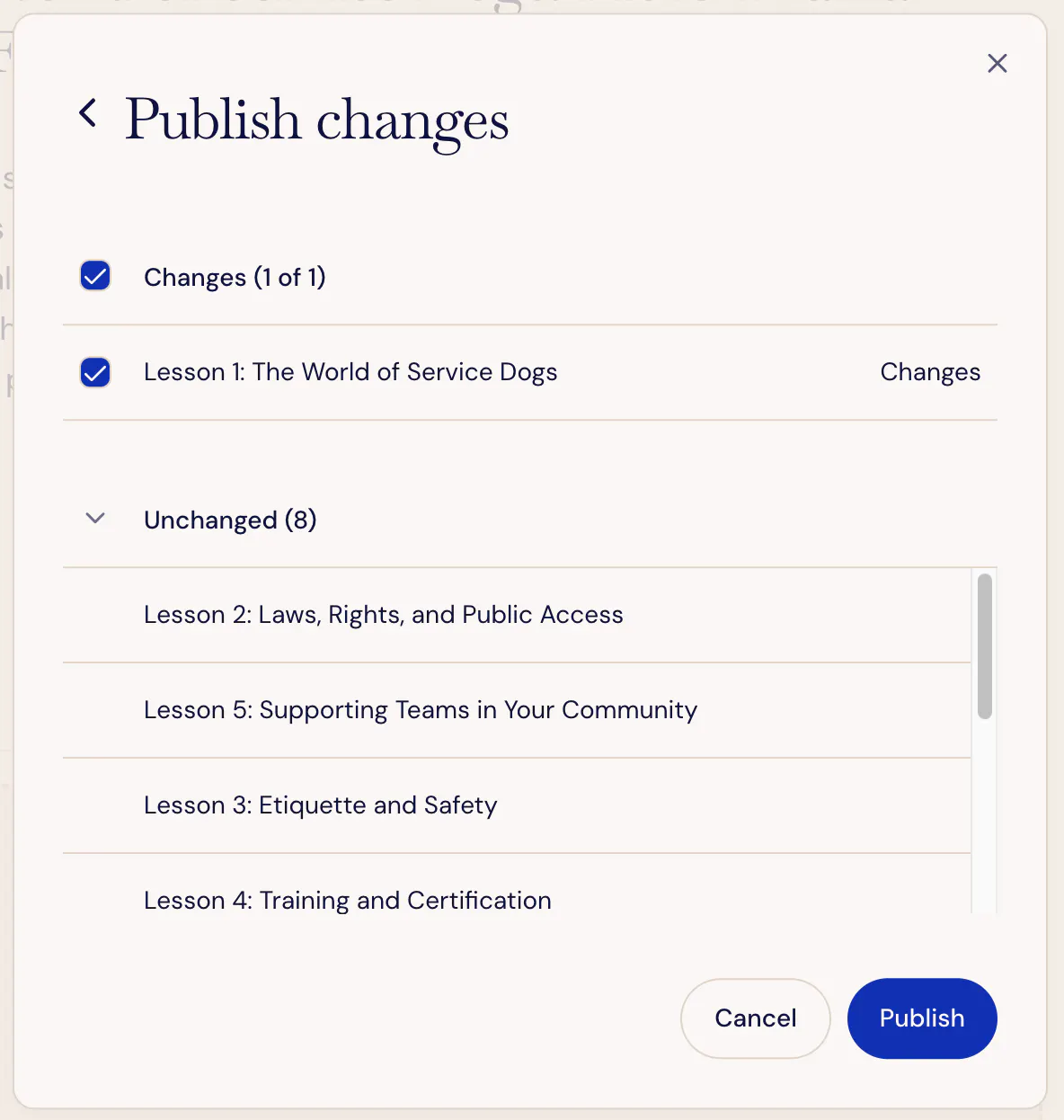
Changes will be visible to students immediately once you publish.
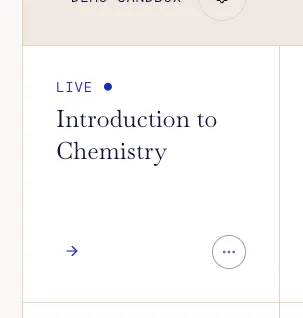
You will see courses that are published marked as "Live" on your projects homepage.
Selecting how students will access your course
Once you publish the course, you have a number of options for students to view.
Course player
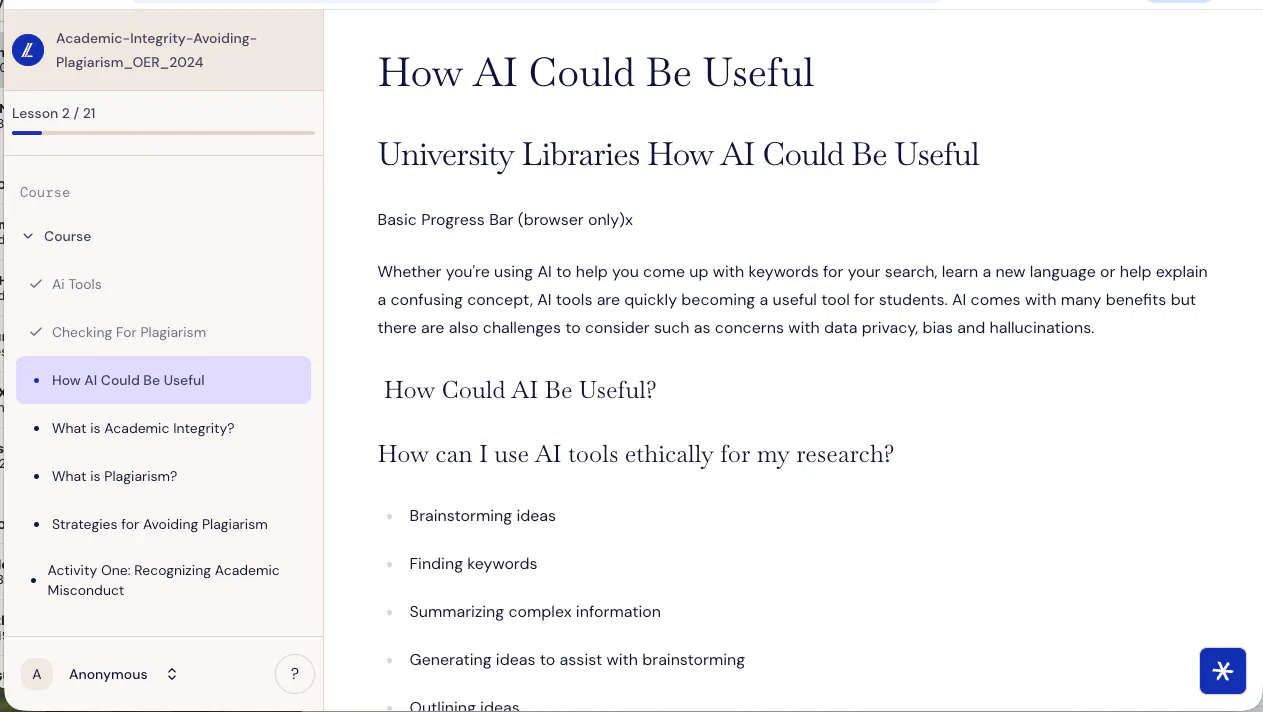
Use this for linking out from your LMS to a standalone course player. This is especially useful if you want to embed a single button or link on your LMS and not have to embed iframes. The course player uses LTI to handle authentication and tracks student progress
You can see a preview of the course player by clicking on "View course player" or you can copy a link to the resource launch link by clicking on the link icon. (this may require configuring your LTI. More information below.)
Embed via LTI
Embedding an LTI link allows you to create an LTI embeddable link.
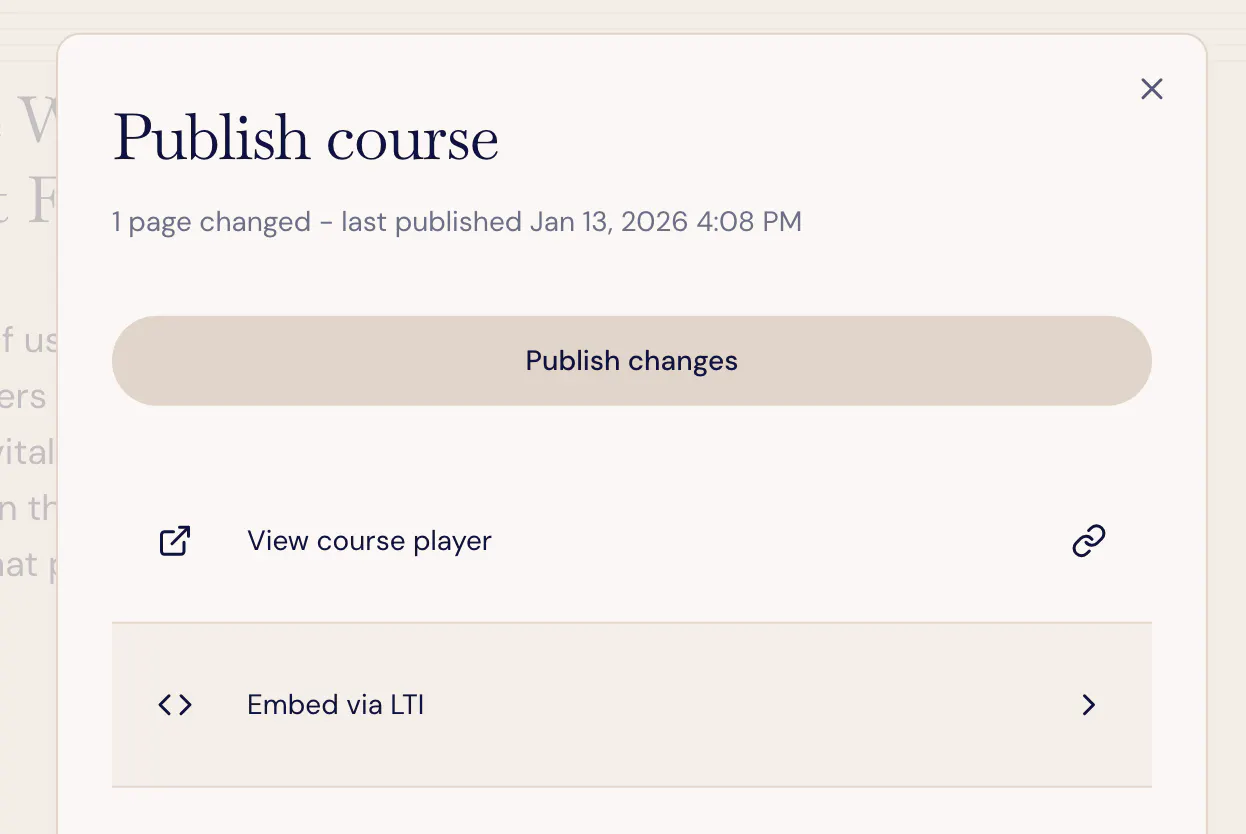
You can use LTI 1.3 (preferred) or LTI 1.1 (legacy). Ideally, you would use the deep link option for selecting which pages will appear in your LMS.
Configuring your Open edX LTI 1.3 integration with a reusable configuration
Configuring your Open edX LTI configuration in the component block
Embedding as iframe
You can embed your page as an iframe for use in any LMS or website that allows iframes. You can either get an iframe link, or embeddable code for a complete iframe component.
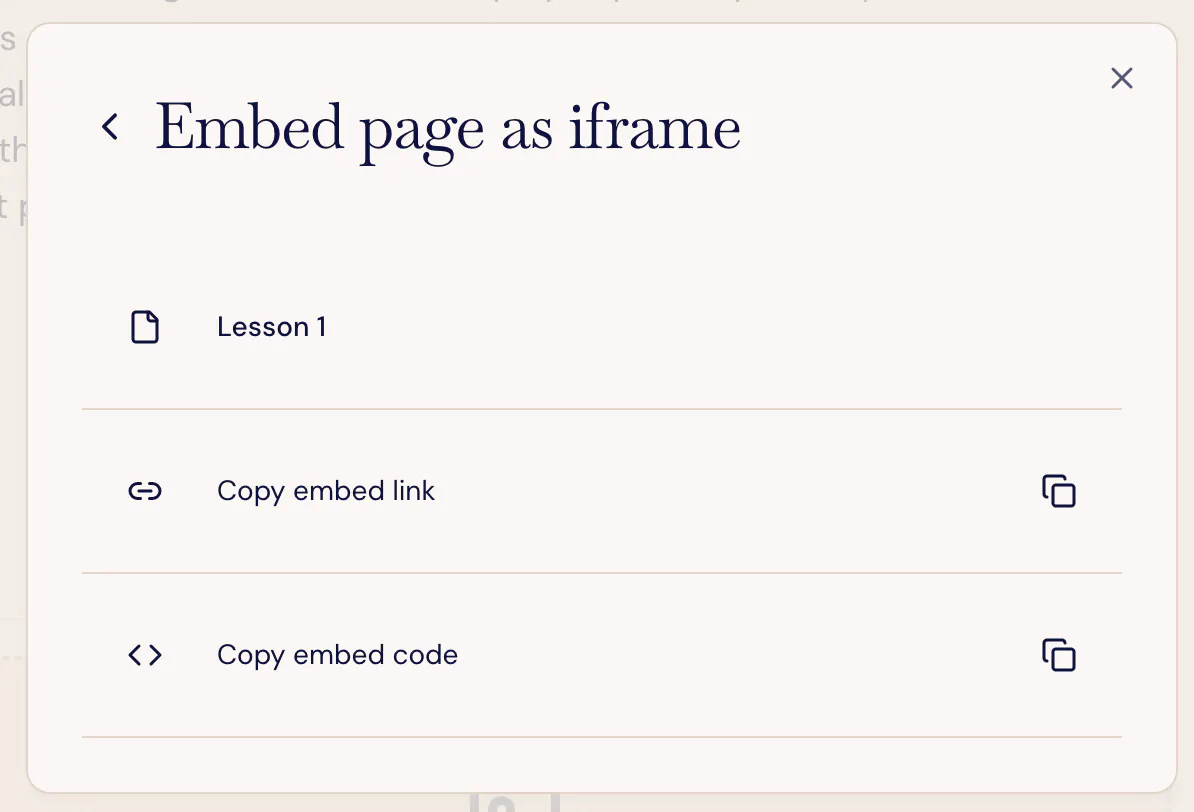
Keep in mind, this is especially useful if you don't have any assessments or polls in your course that need to be tracked to individual students. Any work done by students will be tracked to the same anonymous student id, no matter who accesses it.
Export course
You can currently export the course as an OLX (for Open edX) or Thin Common Cartridge (Canvas, D2L Brightspace, Moodle, Blackboard, etc.), which is a Common Cartridge file with only LTI links.
Unpublishing a course
If you later want to make a course closed for student view, you may decide to unpublish it. You can access this at the bottom of the Publish course options.
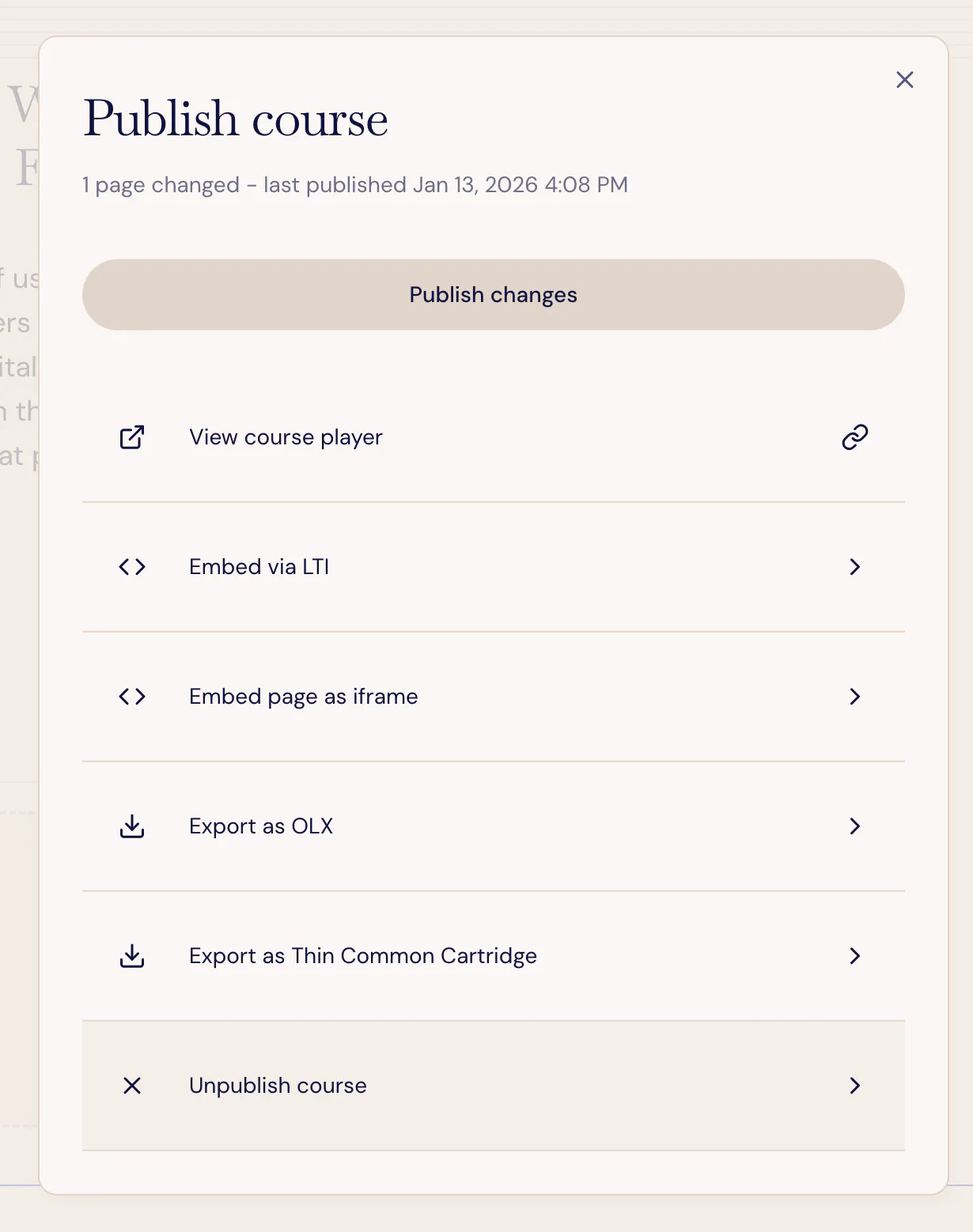
You will be warned before you unpublish the course, to prevent you from accidentally closing access to students during the course.